How Your HVAC Answering Service Works
Your AI receptionist answers calls you forward, follows your shop's intake rules and sends the details to you. Hear it handle an HVAC call in the browser demo, then request a free trial for your business.
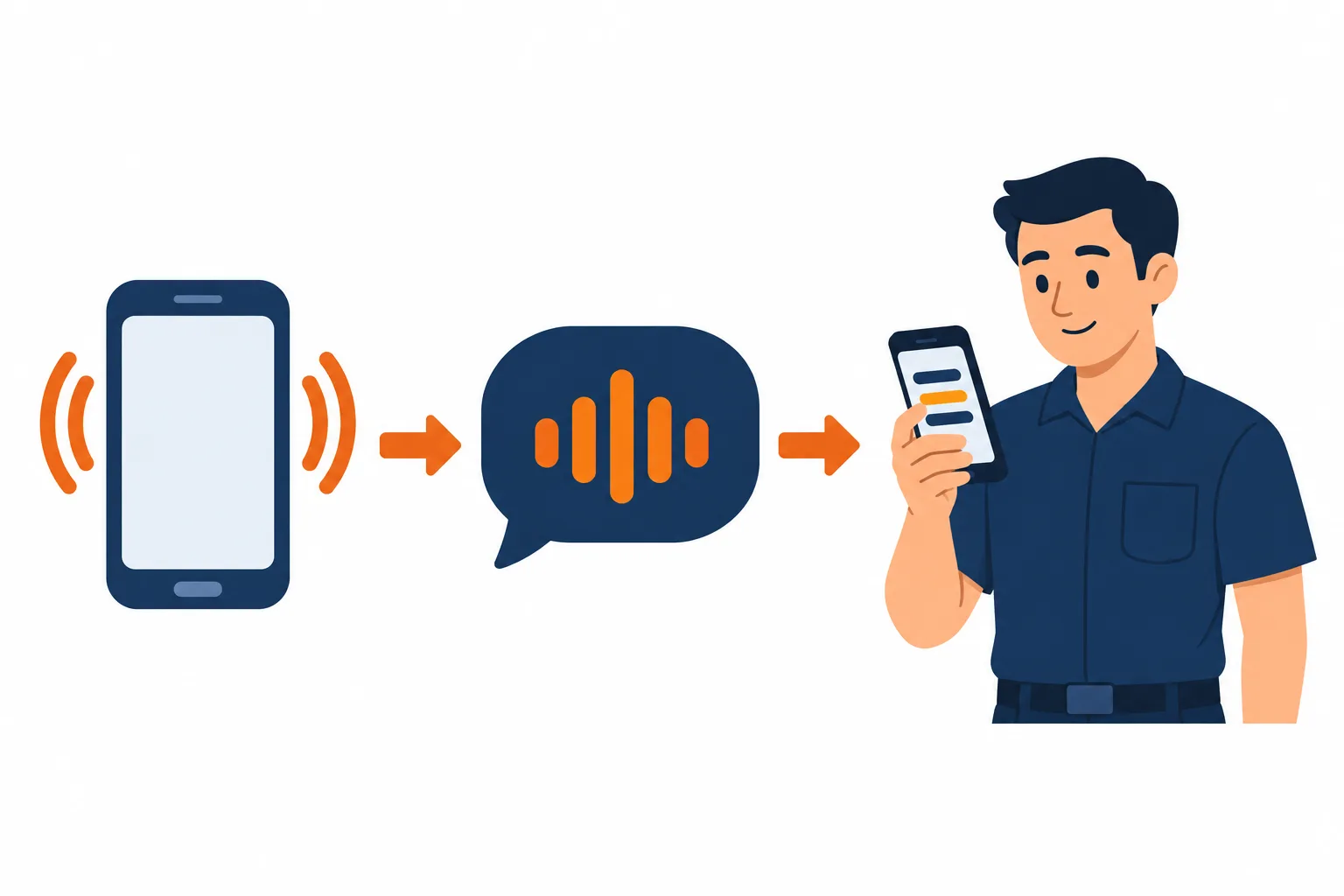
How it works in four steps
- Choose your forwarding Keep your business number and select all calls, busy calls, unanswered calls or after-hours calls.
- Hear your business greeting Your receptionist identifies itself as a virtual assistant, announces recording and asks your intake questions.
- Check the results Receive email and app push alerts, with appointment booking into Google Calendar when you choose it.
- Test before going live Place a test call, check the message and urgent route, then enable forwarding for customers.
Choose Which Calls to Forward
You keep your current business number and choose when calls reach your receptionist. Forward all calls, or use it for no-answer, busy or after-hours coverage.
Keep your number
Customers dial the business number they already have.
Choose the handoff
Send calls over when your office cannot answer.
Follow carrier steps
Use the forwarding guide for your existing phone setup.
More detail
Forwarding sends the calls you select to the local number we provide. Your carrier or phone system determines the setup steps, and we give you a guide for that setup. Choose full forwarding if you want the AI receptionist handling intake throughout the day.
If your dispatcher still answers first, choose busy or no-answer forwarding. After-hours forwarding gives the night shift its own handoff without changing the number on your trucks. Place a test call through your business number to check the route before putting it into use. Visit the free trial request page; we'll email your sign-in link when the trial is ready so you can configure your shop.
Hear the Greeting, Intake and Urgent Call Handoff
Your receptionist answers as your business, discloses that it is a virtual assistant and announces recording. It asks intake questions, applies your urgency rules and follows your booking or callback preference.
Clear opening
Callers hear the virtual-assistant and recording notices before intake.
Useful questions
Capture the service problem and details your shop needs.
Urgent routing
Warm transfer or page your on-call person in your chosen order.
More detail
A tune-up request needs different handling from a furnace that stopped overnight. Your receptionist asks the intake questions for your trade, flags urgency and takes a complete message. Price questions use the policy you supplied, whether that means a diagnostic fee or taking details for a callback.
For urgent calls, your on-call person can hear a short summary and press 1 to accept a warm transfer. You can choose paging instead and set the contact order. For a reported gas smell or CO alarm, the safety script tells the caller to get everyone out and call 911 or the utility from outside, then alerts you.
Get Call Details by Email, App Push and Dashboard
Each call produces an email and app push alert with a summary, urgency tag, transcript and recording. Your dashboard holds the call details, while a daily digest email helps you review activity.
Read the summary
See the caller's request and the urgency tag together.
Check the conversation
Open the transcript and recording for the full context.
Choose appointment handling
Book into Google Calendar or collect details for callbacks.
More detail
Your call alert gives you a short account of what the caller needs, with the transcript and recording available for a closer look. Check those details before returning a complicated service request. The dashboard also shows usage and settings, so you can review how you are using the service.
Booking is a choice you make for your business. The receptionist can book appointments into Google Calendar, or gather the information your office needs to call back. The daily digest email gives you another way to review the day's calls. Call summaries can be entered into your existing job software by your team.
Test Your Setup and Update Rules in Plain Words
A test call lets you check the greeting, intake and on-call handoff before customer calls arrive. After setup, tell the AI what to change in your business settings.
Try a real scenario
Use a no-heat request from inside your service area.
Inspect the handoff
Check who receives the urgent call and its summary.
Keep rules current
Tell the AI when your hours or policies change.
More detail
Run a test using a job your shop actually handles, such as a no-heat call from a neighborhood you serve. Listen for the business greeting, answer the intake questions and inspect the resulting alert. Check your urgent contact route before enabling customer forwarding.
When your weekend hours or service area changes, tell the AI in plain words and check the settings in your dashboard. Test the affected call path again, especially after changing who gets urgent requests. You can first hear the fictional shop demo to understand the conversation before building your own setup.
Frequently asked questions
Can I keep my existing business phone number?
Yes. Keep the number customers already dial and forward the calls you select to the local number we supply. We provide instructions for your carrier or phone system. Test the route through your business number before sending customer calls to the receptionist.
How does the AI receptionist learn my shop's rules?
You answer 10-15 onboarding questions in a chat with the AI, and it uses your website to learn about your business. Give it your services, service area, hours, price policy and urgent contact instructions. You can change settings later by telling the AI in plain words.
Will callers know they are talking to AI, and are calls recorded?
Yes. The greeting identifies the receptionist as a virtual assistant and says the call is recorded. Both notices are part of the opening and cannot be switched off. You receive the recording and transcript with the call details, so you can check what was said.
Can it transfer an urgent call to my on-call tech?
Yes. Set your urgent call rules and the order of people to contact. With a warm transfer, the recipient hears a brief summary and presses 1 to accept the call. You can also choose paging for urgent requests instead of a warm transfer.
What happens if it does not know an answer?
It takes the caller's details for your callback rather than making up an answer about your services or pricing. Review the message and conversation, then update your business information if needed. Your team handles the judgment or explanation the receptionist could not supply.
Try an HVAC Call in the Demo
Talk to the fictional demo shop without signing up. Then request a free trial to add your business rules and test your own call route.